


When shopping on Rakuten, what do customers look at before making a purchase?
The answer is “product page.”
For online retailers without physical stores, product pages are a vital place for interacting with customers.
In this post, I’ll give you a clear explanation of how to list products that will “sell”!
How to Register a Product
First, on the RMS...Key Points to Keep in Mind When Registering Productsselected, and
We will explain this in three sections: 1-1 Basic Product Information, 1-2 Editing Product Pages, and 1-3 Product Registration Information.
Basic Product Information
This is where you set up basic product information, such as the product name, price, and shipping methods.
Here,
● Setting Up Product Overview
● Pricing
●Shipping Settings
●Button Settings
I'll explain these four points in detail.
● Setting Up Product Overview
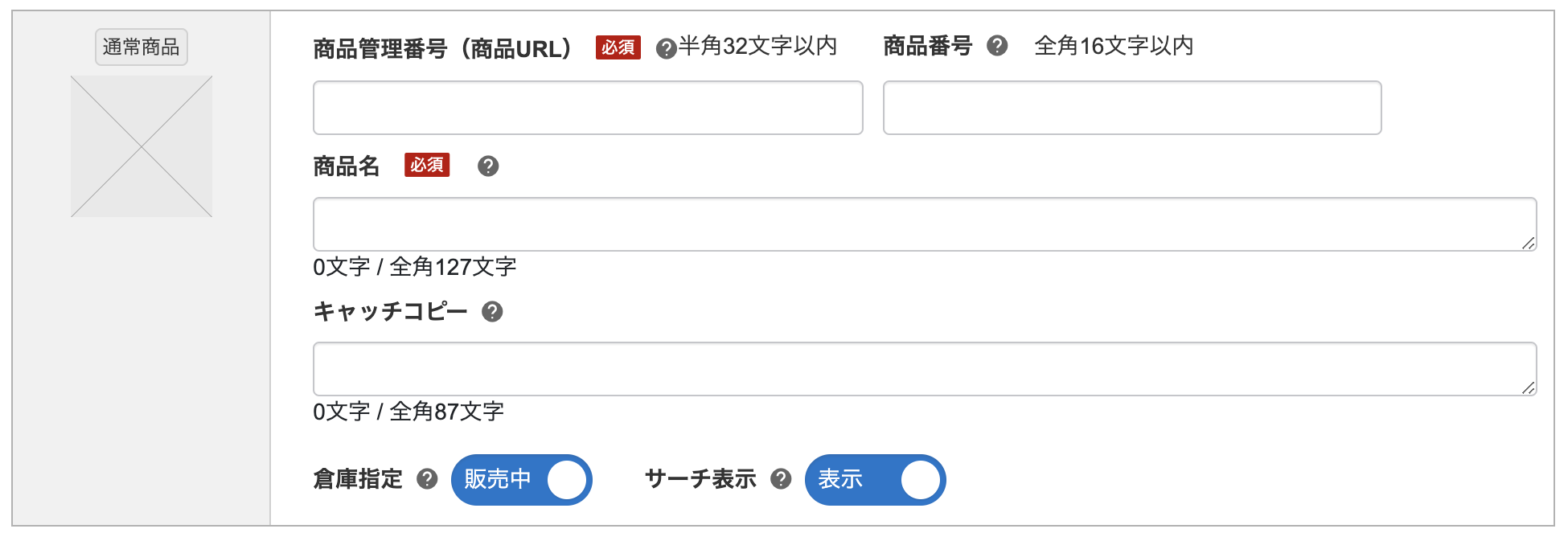
① Product ID (Product URL)
This is a number that identifies each individual product and forms part of the product page URL.
Once you set this, you won't be able to change it, so please think carefully before setting it.
② Product Name
Product names, brand names, product categories, free shipping, etc.
Set the text that provides basic information about the product.
For example, suppose you’re selling a diet supplement called “Hyde Jiman.”
[Official] Diet Supplement "Hide Jiman (1 bag, 90 capsules) × 1 bag" [Free Shipping] Hide&SeekTitles like these, for example.
③ Tagline
Keywords that users interested in making a purchase are likely to search for (such as categories, ingredients, or concerns), and
Let's come up with a tagline that really resonates with people.You can set it to a maximum of 87 characters.
For example, the diet supplement “Hydo Jiman”
In the case of a fat-burning supplement containing L-carnitine and capsaicin.
Just take it before your workout to boost your fat-burning power! Diet supplements / Fat-burning supplements / L-carnitine / Capsaicin
We recommend using titles like these.
● Pricing
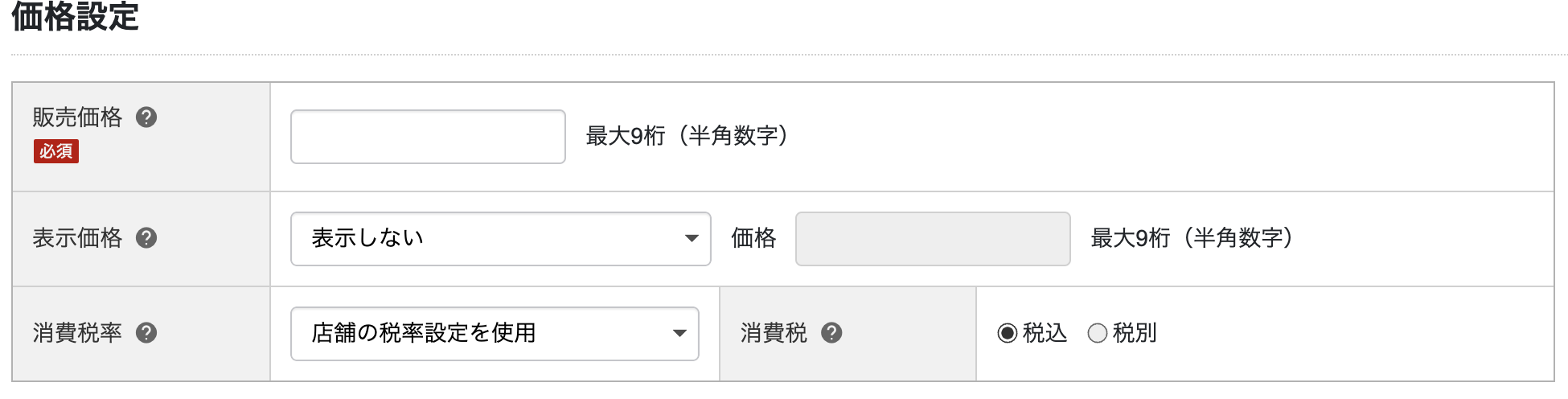
① Selling Price
Enter the selling price of the product.
You can select whether the price includes sales tax or is exclusive of sales tax from the drop-down menu under a separate item.
② Listed Price
Set the displayed price, such as "Open Price" or "Our Regular Price."
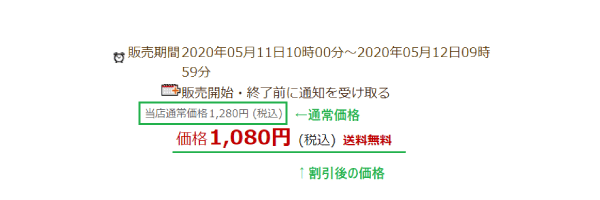
If you want to display dual pricing as shown in the image below,
You cannot set an “open price.”
Dual pricing refers to displaying both the regular price and the discounted price side by side,
It's one way to highlight the value.
●Shipping Settings
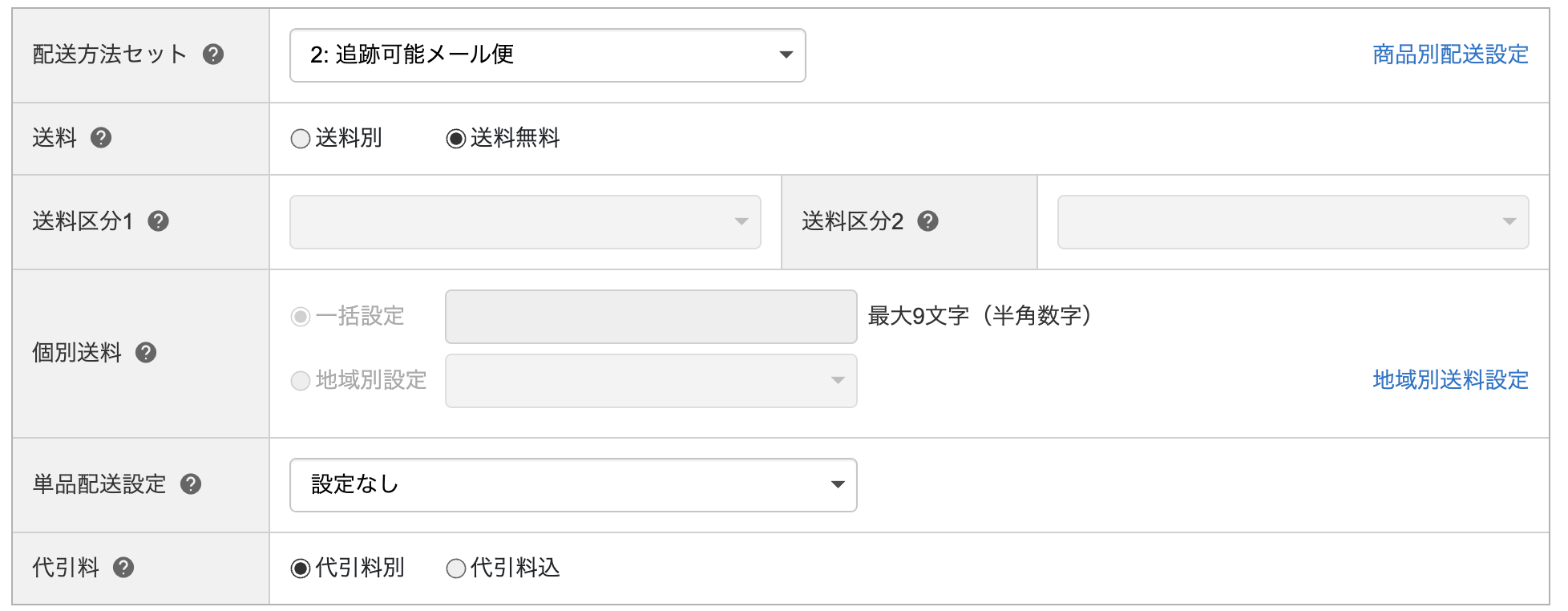
① Shipping Method Set
Configure this setting when you want to specify the shipping methods available for each product.
The shipping method sets you registered under "Shipping by Product" in the Basic Information settings will appear in the drop-down menu.
This is useful when you want to use different shipping methods—mail for small items and courier service for large items.
●Button Settings
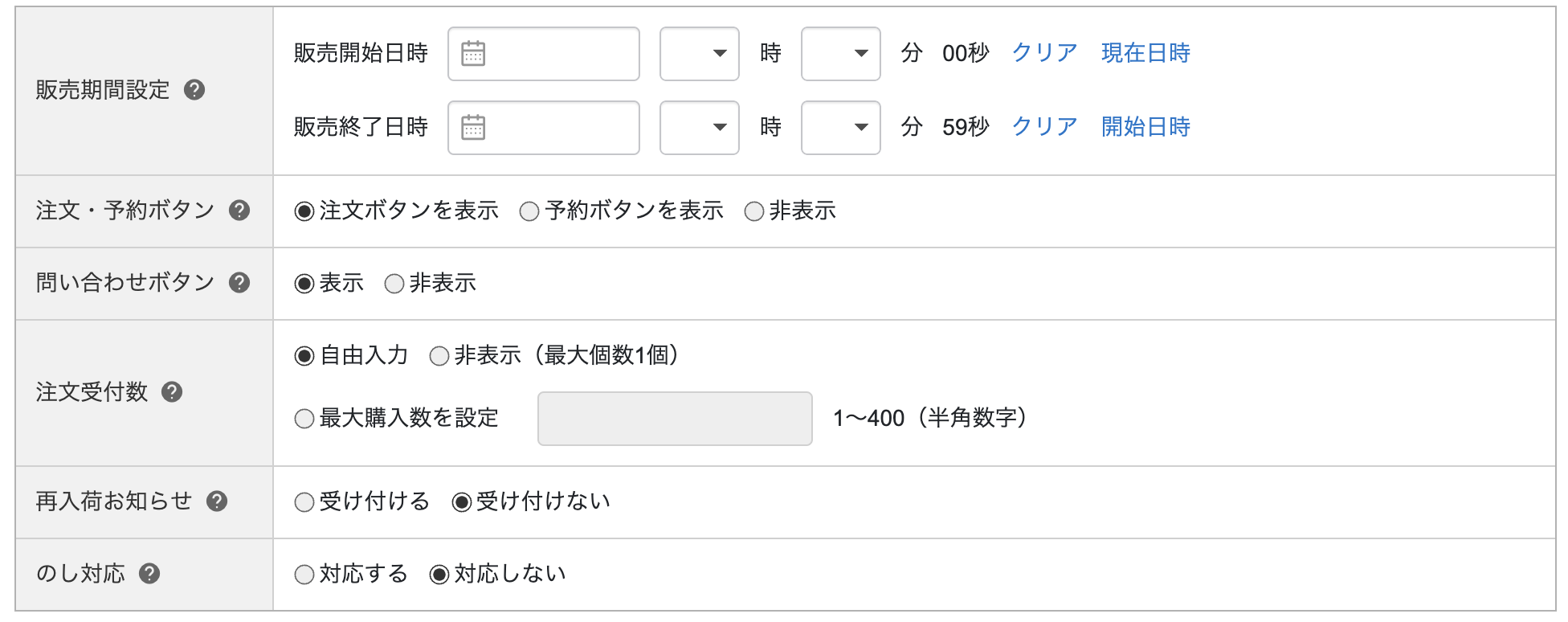
① Order/Reservation Button
② Contact Us Button
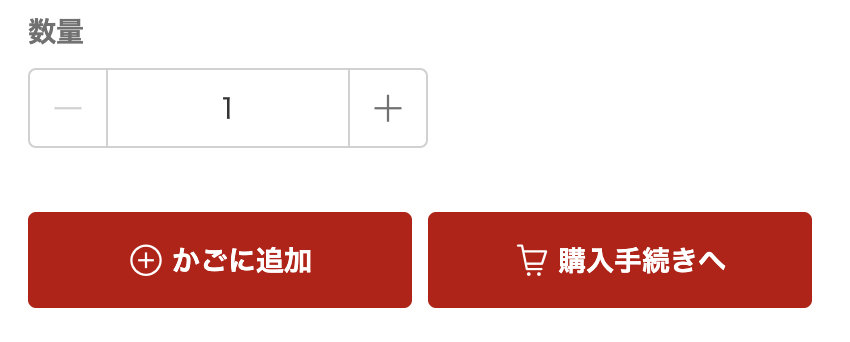
Let's configure the settings to display the button on the product page.
This is the important button customers click when making a purchase.
Edit Product Page
This is where you configure settings for the elements that make up product pages, such as product images and landing pages.
●LP Settings
●Setting Product Images
I'll explain these two points separately.
●LP Settings
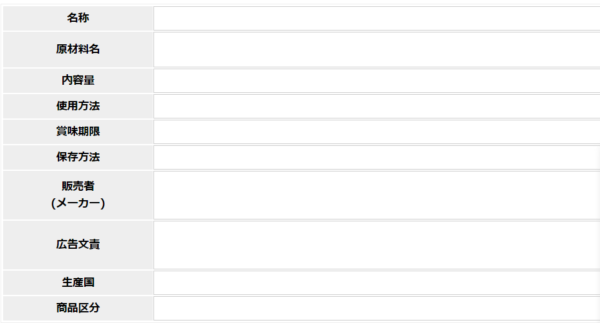
① Product Description for PCs
Enter a description of the product as shown in the image below.
You can enter HTML tags to a certain extent, and Rakuten provides a free tool for automatically generating HTML.
② Product descriptions for smartphones
Configure the landing page section of the product page for the smartphone version. You can enter HTML here.
③ Product Descriptions for PC Products
Configure the landing page section of the product page for the PC version. You can enter HTML here.
●Setting Product Images
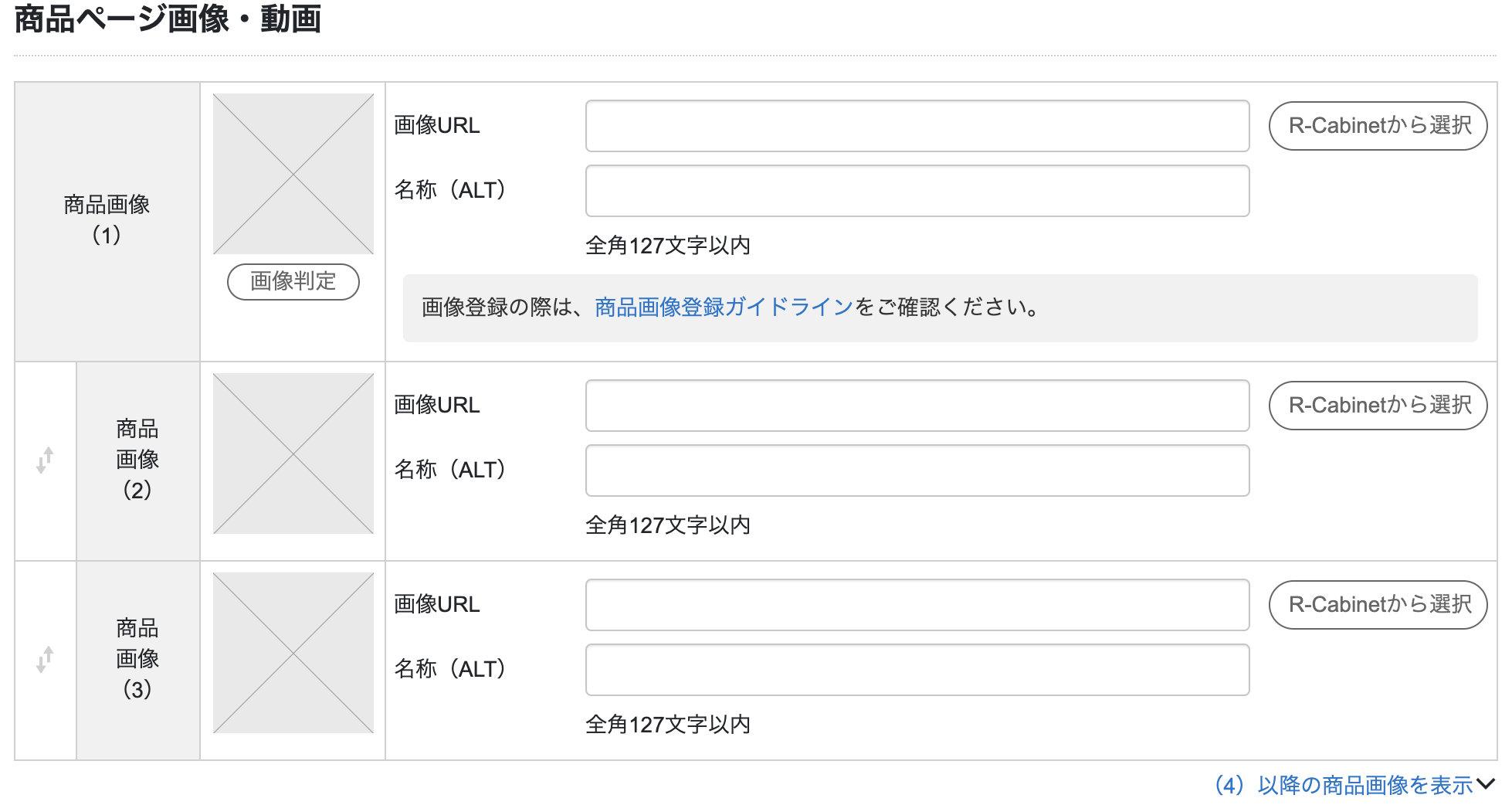
① Product Images
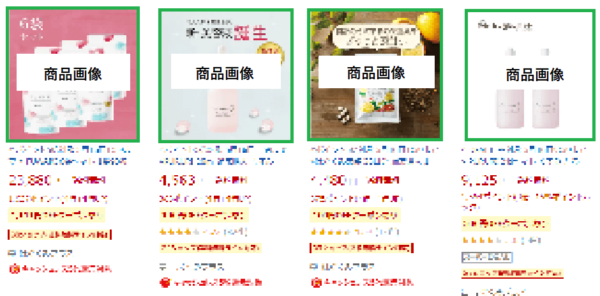
When you enter a keyword into the Rakuten search bar, it will appear as shown in the image below.
Since the product image you set (1) is displayed as the product's main image,
A design that showcases the product is essential.
However, since there are rules regarding the proportion of text and the background for images used as Product Image (1),
When registering a product, be sure to use the “Image Verification Tool” available on RMS before completing the setup.
You can upload up to 20 product images.
Product Registration Information
This is where you configure product IDs and display options.
●ID Settings
●Display Mode Settings
I'll explain these two points separately.
●ID Settings
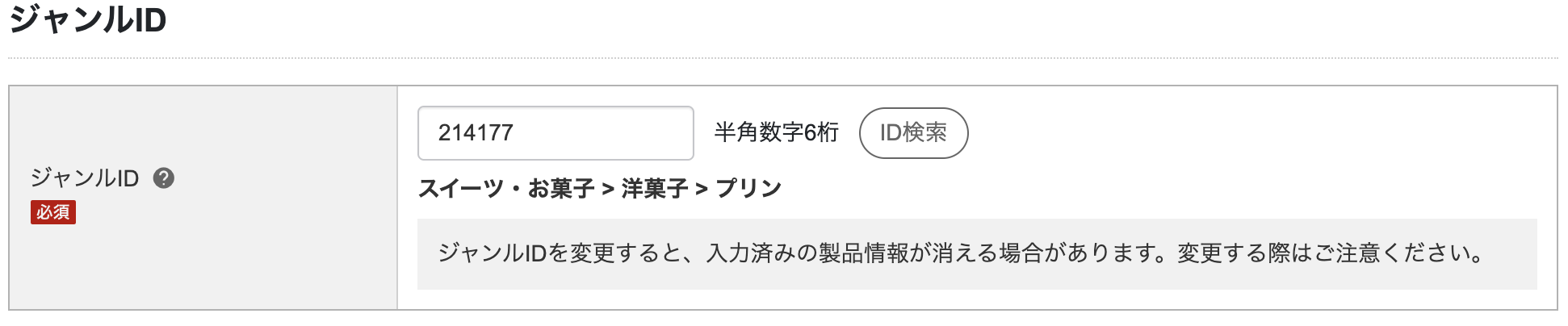
① Genre ID
This is an ID that you must register when selling products on Rakuten Ichiba; it is used to set the product category and type.
(IDs are assigned to categories such as Women's Fashion > Bottoms > Culottes, etc.)
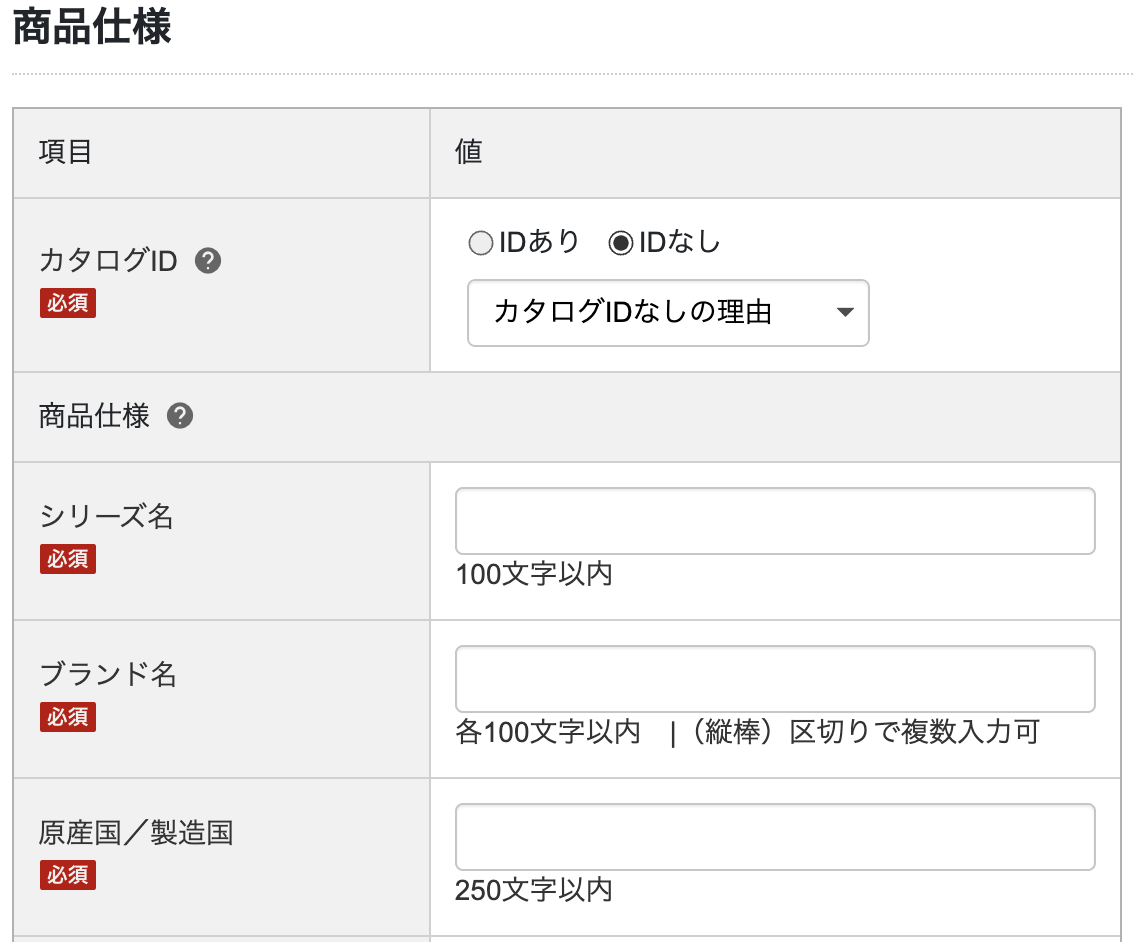
② Catalog ID
Like the genre ID, this is a product code that must be registered. The following are definitions of the catalog ID.
・JAN Code: This is the most widely used product code in Japan and is used as a key to search for prices and product names in POS systems, inventory management systems, and order processing systems. (8-digit or 13-digit product codes beginning with 49 or 45)
・EAN code: An abbreviation for European Article Number; it is one of the product code and barcode standards primarily used in Europe. (8 digits, 13 digits)
・UPC code: An abbreviation for Universal Product Code, a product code primarily used in the United States and Canada. (UPC-A, 12 digits, 13 digits)
・ISBN: An abbreviation for International Standard Book Number, which is a globally recognized number used to identify books. (13 digits starting with 978 or 979)
・Rakuten Original Code: This is a code issued exclusively by Rakuten. Rakuten issues these codes for products that do not have a product code or whose product code is unknown, in order to improve the product search experience for Rakuten Ichiba users.
●Display Mode Settings
① Hide Search
Use this if you don't want your product to appear in Rakuten's internal search results.
For example, if you want to hold a sale exclusively for email newsletter subscribers.
If you set the search to "Hidden" and send the product page URL via email,
You can create a special product page that can only be accessed from that email.
② Warehouse Designation
If you leave out-of-stock items as they are,
Since this will reduce usability, select "Put in Storage" in that case.
Once an item is moved to the warehouse, it will no longer appear in Rakuten Search.
A Product Listing Manual for "Selling Well"
Do you understand the product registration process?
Next, I’ll explain three key points for creating product pages that “sell”!
Choose your product management number carefully.
Since the product ID is part of the product page, it cannot be changed once it has been set.
The product page URL is a crucial part of your shop’s image.
▼Example of a Product Page URL Structure
http://item.rakuten.co.jp/店舗URL/商品管理番号/
We need to set this up carefully, keeping in mind that this is a place where we interact with customers.
Upload multiple product images
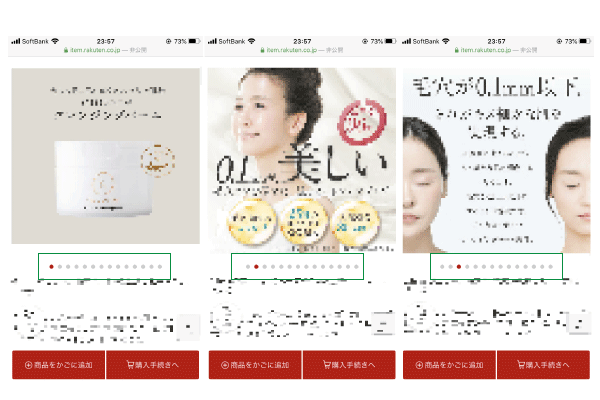
When you view a Rakuten product page on your smartphone, it will be displayed in a swipe format, as shown in the image above.
At Rakuten, where many purchases are made via smartphone,
Since users swipe to view product images,
A key tip for increasing your conversion rate is to upload multiple product images.
You can upload up to 20 product images. Start by uploading at least 6.
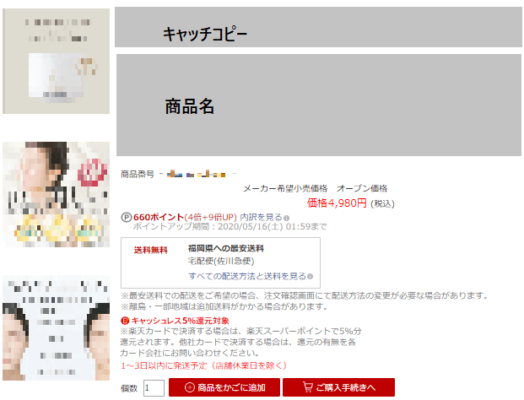
Also, when viewing the product page on a PC, it will appear as shown in the image below.
Product images appear to the left of the "Buy" button, making them a crucial element in driving purchases.
Whether you're optimizing conversion rates for smartphones or PCs, high-quality product images are a must.
Rakuten Internal SEO Strategies for Product Listings
Although Rakuten's internal algorithms have not been disclosed,
It is believed that factors such as optimal keywords, the number of reviews, and sales performance play a role.
The following section covers SEO strategies within Rakuten for product listings.
Many Rakuten users,
Enter a keyword in the Rakuten Ichiba search bar to find the item you want to purchase.
In other words, keywords that users who are ready to make a purchase are likely to search for
By configuring this during product registration,
This means that as more users find your site through search, traffic increases, which in turn leads to more conversions (CV).
The following eight items appear in the search results.
・Product Name
・Tagline for PC
・Mobile-friendly tagline
・Product descriptions for PCs
・Product descriptions for mobile devices
・Product descriptions for smartphones
・Product Description for PC
SEO strategies within Rakuten, andTo create product pages that “sell,”
When registering products, be sure to thoroughly select keywords and optimize your landing pages.
Reference:https://itsumo365.co.jp/blog/post-2132/
In the next chapter, to create pages that “sell,”
We’ll introduce and explain the optional service provided by Rakuten: the “Bulk Edit CSV Products” feature.
Bulk Edit CSV Products
To begin with, the CSV bulk product editing feature is,
To edit large amounts of product information all at once
This is a service offered by Rakuten as a paid option.
Some of the benefits of using the CSV bulk product editing feature include
・Since you can edit large amounts of product information all at once, this saves a significant amount of time.
・Compared to working in an RMS, CSV files are easier to read and edit, making human errors less likely to occur.
Points such as these.
On the other hand, one of the disadvantages of using the CSV batch editing feature is
・Since we edit CSV files and upload them in bulk, we can't check the preview frequently
・There is a possibility of accidentally deleting all products
These are some of the points.
Be sure to understand the pros and cons before using it.
Preparations Needed in Advance
Since bulk CSV product registration is a paid optional service,
The monthly fee is 11,000 yen (including tax).You must apply through RMS.
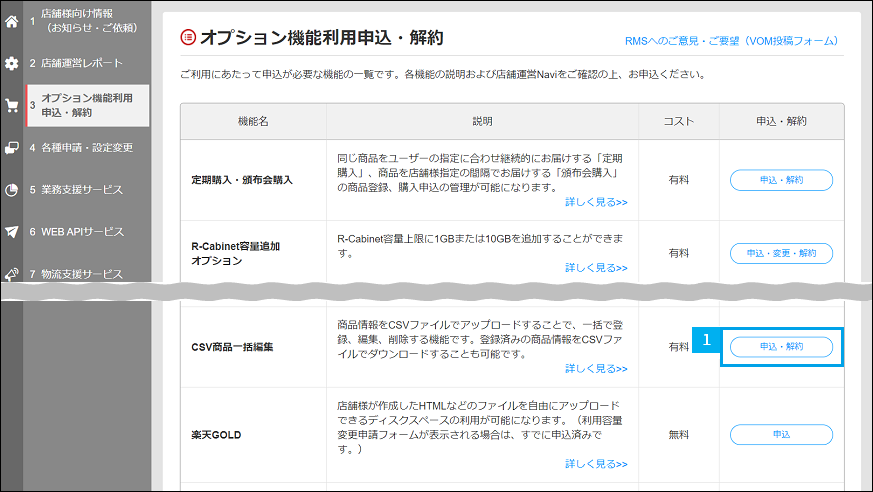
RMS Main Menu > Information and Services for Merchants > Apply for or Cancel Optional Features > Apply for or Cancel CSV Bulk Product Editing
> CSV Bulk Product Editing Feature Application / List of Applications and Usage Status
In addition, an FTP server for downloading and uploading CSV files, and
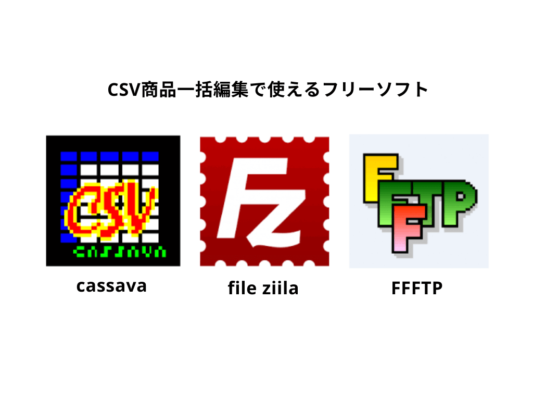
You'll need software to edit CSV files. Here are some free options:
Steps for Batch Editing Products via CSV
■When Editing or Deleting Multiple Items at Once
(1) Upload product images to R-Cabinet
In R-Cabinet, which manages images and videos, the image to be set as the product image
Upload using drag and drop.
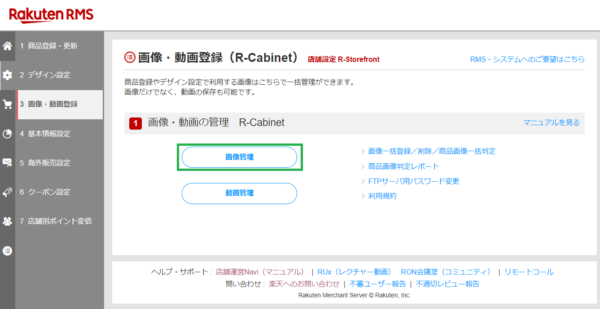
RMS Main Menu > Store Settings > Image and Video Registration > Image Management
(2) Download the CSV file format
Download the CSV file required for bulk product registration from "CSV Download."
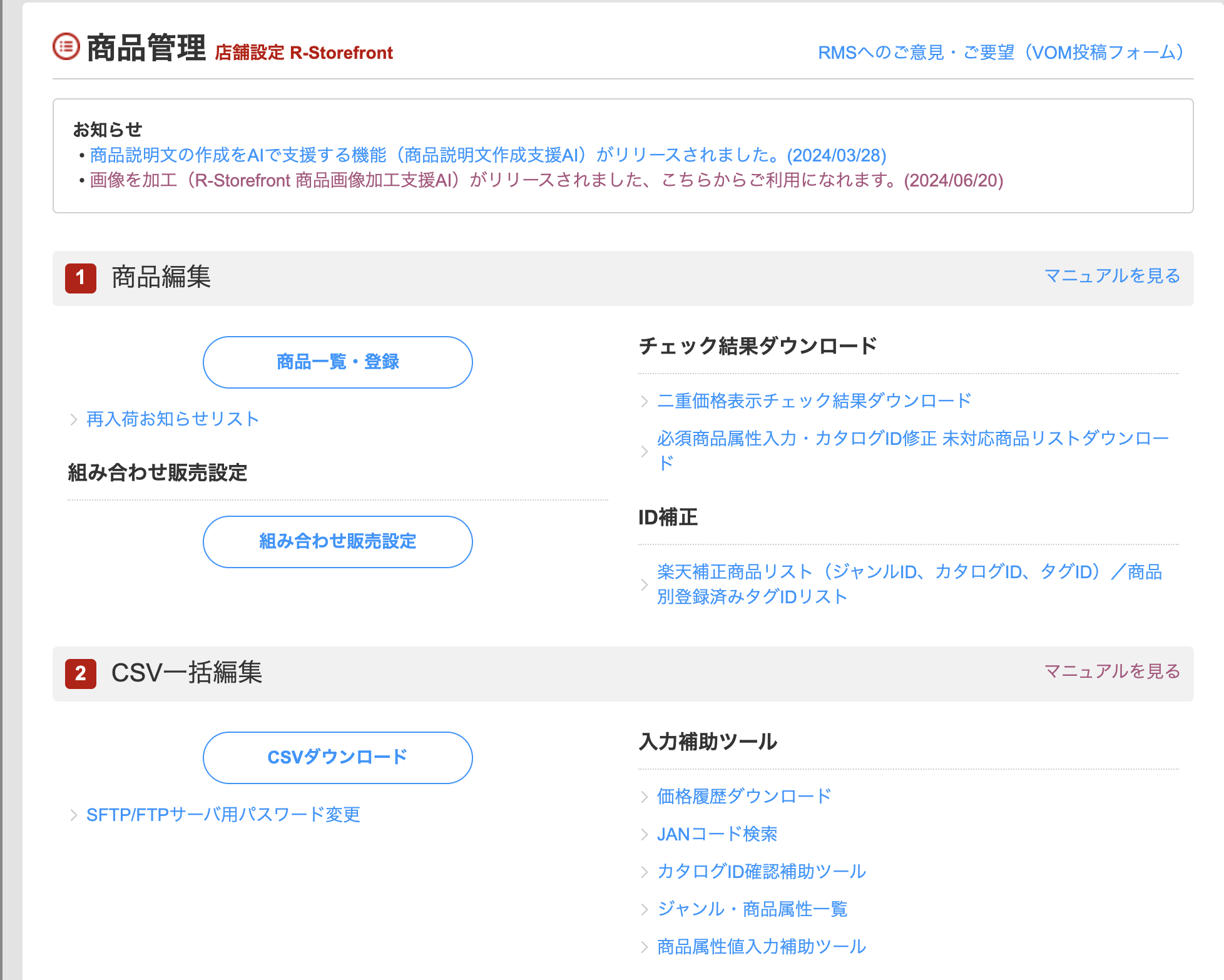
RMS Main Menu > Product Management > Bulk Edit via CSV
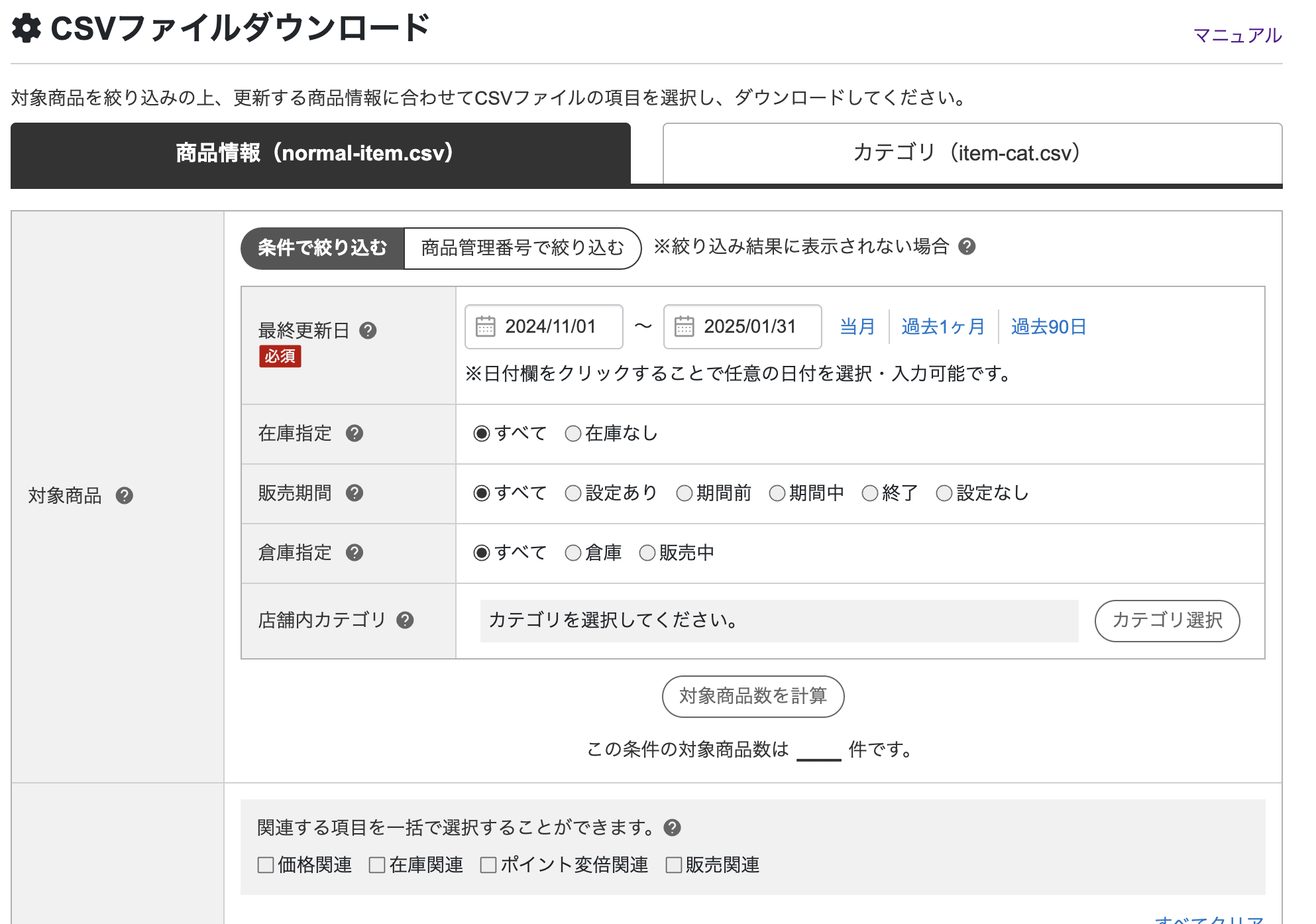
(3) Select the download options and format for product information
Once the CSV download homepage opens, depending on the information you want to update,
Please select the download conditions and items, then click the download button.
Since you can filter by conditions or by product management numbers, depending on the action you want to take,
Please select the appropriate option.
(4) Create product information by category
Once you've downloaded the form, fill it out field by field.
Since you can edit multiple products on a single screen, this saves a significant amount of time. *Up to 100 items can be selected.
Also, keep in mind that you’ll need to change the file name depending on the format you selected in (3).
If the file name is different, an error will occur during upload.
① CSV file for updating products: nomal-item.csv
Bulk-register new products, SKUs, and product options, or
Use this feature to update the sales prices, inventory levels, and sales periods for registered products and SKUs all at once.
② CSV file for category registration: item-cat.csv
Linking categories created in RMS's "Category Management" to products, and
Use this to update the "Display Order in In-Store Categories" for products in bulk.
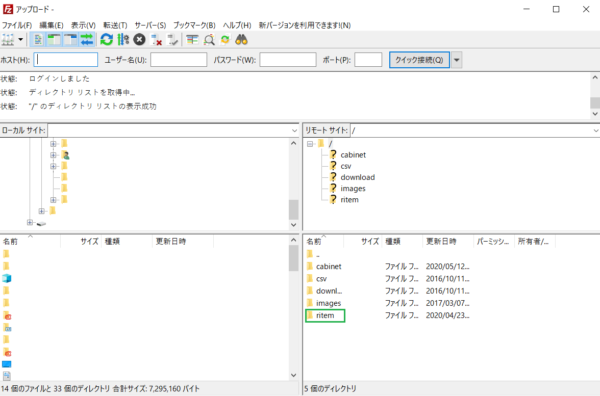
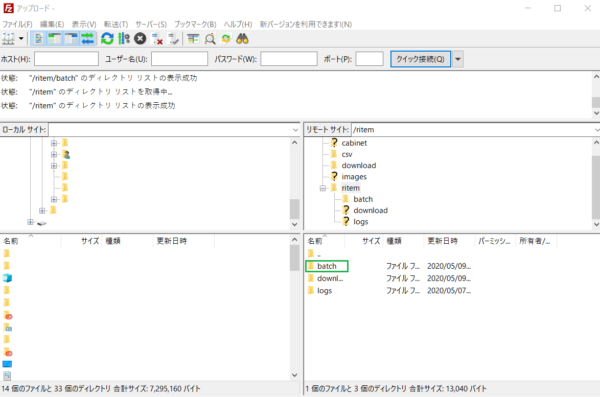
(5) Upload to the Rakuten Gold server using FTP software
Drag and drop the edited CSV file
Upload it to the “/ritem/batch/” folder.
If the file name is incorrect,
An upload error has occurred, so the product registration will not be processed. Please double-check the information before uploading again.
▼Click here to read this article on how to schedule a bulk CSV update!
Points to Note When Editing Multiple Products via CSV
Bulk editing of CSV products offers significant benefits, such as time savings and a reduction in human error.
Here are some tips on how to make the most of it.
■When using the CSV file for category registration: item-cat.csv,Check the control column carefully.
The "Control Column" specifies how to process the product information entered in each field.
You can choose from the following three options.
n: Registration
u: Update
d: Delete
If you accidentally select “d: Delete” and upload the file,
Since entire product pages will be deleted, please check and edit them carefully.
■During events, it may take some time for changes to take effect
During events such as the Shopping Marathon or Super Sale,
In particular, the Rakuten Gold servers tend to get congested during the few hours before an event starts, so
It may take some time for the changes to take effect.
It is important to take the time lag into account when using the CSV bulk product edit feature.
Also, to create a product page that sells,
It is important to use the product registration and CSV bulk product editing features appropriately.
Considering the balance between cost and resources,
If the number of products you carry is fewer than 20, when registering for the first time,
We recommend registering products without using the CSV bulk product editing feature.
Since you can duplicate the product page you created from the product page list in RMS,
You can easily create a product bundle page for the same item by simply updating the necessary information.
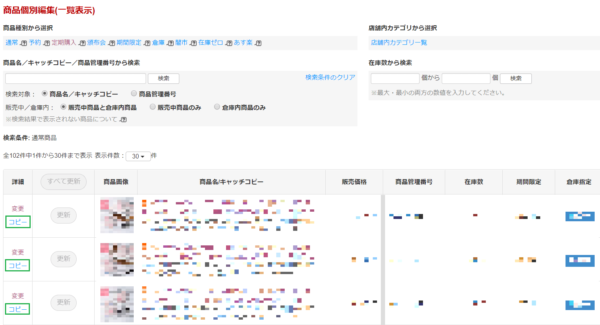
RMS Main Menu > Product Registration/Update > Individual Product Edit Function > Edit Individual Product
If you have only a few products, you can register them in RMS while viewing a preview, and
The CSV bulk product editing feature is available during the sale period
Use this when you want to include phrases such as “5x points on all items” in all product names,
By using these strategies appropriately, you can build a store that sells efficiently.
Summary
Product pages, where customers are served, are a crucial part of any online store.
To build a successful store, you need to make effective use of both product registration and the CSV bulk product editing feature, and
The key is to efficiently create pages that drive sales.
Hide&Seek, the author of this blog, is,
We are a Fukuoka-based company that provides management services for Amazon, Rakuten, and Yahoo! Shopping.
"I want to open a store on an e-commerce marketplace, but I don't have the resources to spare."
"We want to expand our sales channels while maintaining the competitive edge of our own online mall."
"I opened a store on an e-commerce marketplace, but I haven't had time to...""We can't increase sales without him."
If you have any concerns like these, please feel free to contact us using the contact form below.
Thank you for reading to the end!



アイキャッチnew.jpg)