

When managing ad campaigns, analyzing website traffic is essential, isn't it?
However, with the emergence of various websites and apps, the number of tags required has increased, making them difficult to manage. This is where “tag managers” come in. Some of the most well-known examples include “Google Tag Manager” and “Yahoo! Tag Manager.” In this article, we’ll take a closer look at “Google Tag Manager.”
"I can't fully grasp the status of the embedded tags."
"It can be confusing because tags sometimes differ depending on the website."
"We've outsourced HTML editing to a third party, so we can't add or remove tags immediately."
These tag management tools are designed for people like that, but I imagine there are still many who don’t fully understand them yet.
After reading this article, be sure to gain a solid understanding of how tag managers work and their benefits, and put that knowledge to use in your ad campaigns.
1. What is Google Tag Manager (GTM)?
Google Tag Manager (hereinafter referred to as GTM) is a tag management tool provided by Google that allows you to centrally manage various tags.
When running ads, tracking tags and ad tags are essential for analyzing traffic, aren’t they? To use them, you need to embed the tags in the HTML of the relevant pages on your website.
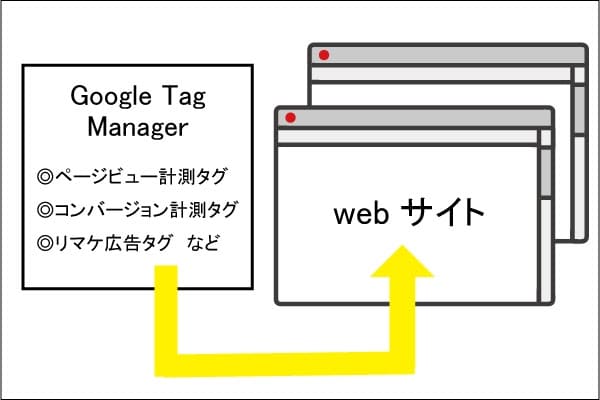
But there are so many tags to use, and you have to edit the HTML every time you add or remove one of them, which is quite a hassle, isn't it?
However, by using this GTM, you don’t have to edit the HTML for each page individually every time; instead, you can manage everything—such as “which pages” and “which tags to embed”—all at once from the tool’s online management interface.
In other words, by implementing just a single GTM tag on your website or mobile app, you can add or remove multiple tags at the same time, thereby reducing the significant amount of time and expense associated with tag management.
2. How GTM Works
Starting here, I’ll explain how GTM works.
The GTM account structure consists of two layers: “Accounts” and “Containers.”
Configuration tasks are primarily performed by "containers."
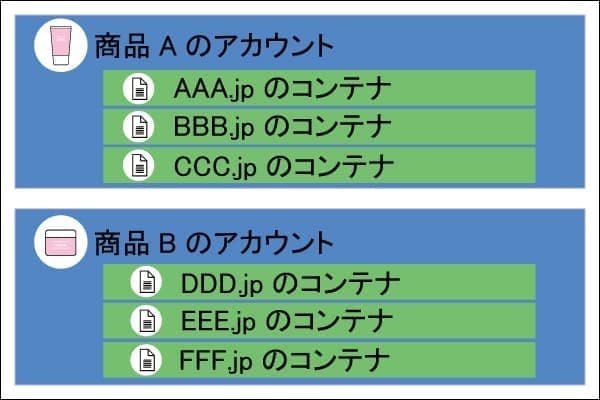
What Is an Account?
This refers to the top-level hierarchy for managing containers. It is common practice to assign one account per company.
What Is a Container?
This represents the site where the actual configuration will be performed. It is common practice to use one container per site or per domain.
For example, if Company A plans to use the service across three sites, it would create an account named “Company A” and then create three containers within that account: “AAA.jp,” “BBB.jp,” and “CCC.jp.”
In fact, a workspace is where you make configuration changes within a container in GTM. Configuration work within this workspace is carried out using three elements: tags, triggers, and variables.
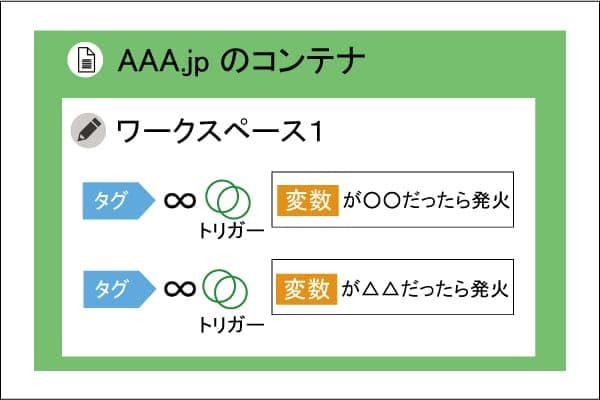
What Is a Tag?
This refers to the code embedded in a website for the purpose of measuring and analyzing ad performance. When the conditions of a trigger linked to the tag are met, the tag fires and the ad is served on the page.
What Is a Trigger?
This refers to the conditions that trigger a tag. For example, a condition (trigger) that triggers a CV tag might be “visiting the thank-you page.”
What Is a Variable?
It's like a container whose value changes depending on the situation. While tags and triggers are generally required, there are cases where you don't need to use variables at all, and others where setting them is mandatory.
For example, variables include things like URLs that differ for each page or the “purchase amount,” which changes with each user’s purchase.
Setting these will trigger the "tag."
However, to trigger this tag on a page, you need to place the parent container's "Google Tag Manager snippet" (the tag that sets up the container) on the page where you want to trigger it.<head>The opening tag and its contents<body>It must be inserted immediately after that.
How to fill it in isHerePlease take a look.
3. Benefits of Implementing GTM
① The website loads faster
Since there will be only one tag to actually place, the page source will be simpler, which will also help improve loading speed.
② Preview Mode
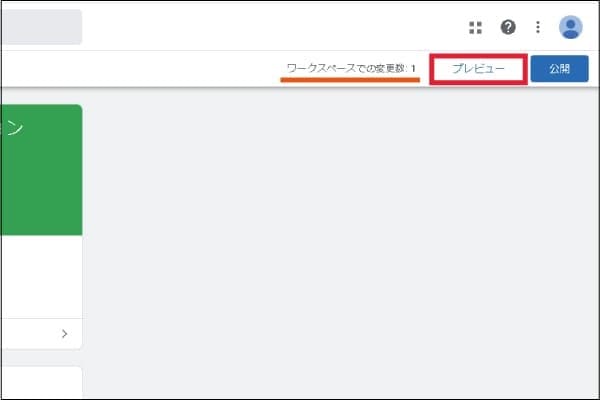
When performing maintenance, it’s difficult to publish the page as a test, but keeping users from accessing it for an extended period could also cause problems, right?
Preview mode is the solution to this problem.
By using preview mode, you can verify that the tags are working properly before publishing the page, so if any errors are found, you can correct them immediately. Identifying issues early on allows you to prevent problems from occurring right after publication.
However, you shouldn't just check it in GTM's preview mode and think that's enough.
It won't work unless you click the "Publish" button.
If it says “Number of changes in the workspace: 1” as shown in the image above, the changes have not been published. Be sure not to forget to click the “Publish” button once you’ve finished all your work.
③ Reduced man-hours
All tags to be deployed are centrally managed within the tag management tool.
As a result, you can add, delete, or replace tags entirely through the admin interface without having to edit the HTML directly, which helps reduce operational workload.
④ You can choose the trigger conditions and set up events
By using GTM, you can configure detailed conditions for triggering tags and set up events. For example, you can configure settings such as “after the site loads” or “X seconds later.”
4. Differences from Yahoo! Tag Manager (hereinafter “YTM”)
In addition to Google Tag Manager, there’s also Yahoo! Tag Manager. What are the differences between them? Let me summarize a few.
① Anyone can use it for free
Anyone can use GTM for free, and there are no usage restrictions based on the size of the website.
There are also paid plans that include features designed for larger-scale operations, but to use them, you’ll need to sign up for Google Analytics 360 separately. In other words, subscribing to Google Analytics 360 also grants you access to the paid version of Google Tag Manager 360.
In contrast, YTM cannot be used for free unless you use Yahoo! Ads.
② Types of Tags
In terms of the types of template tags supported, GTM supports about 80, while YTG supports about 120, so YTM supports more.
However, some versions of YTM are not compatible with the latest tags, such as those used by Google Analytics. If you use Google Analytics, be sure to check whether YTM supports the tags you’re currently using.
③ How to Respond When an Error Occurs
In YTM, you can view the details of any errors that occur with tags or configured pages directly in the admin panel. This makes troubleshooting much easier.
In that regard, GTM can sometimes be time-consuming and labor-intensive when it comes to identifying the cause of a problem.
5. Summary
GTM is a dream tool that has made managing tags—which used to be complicated—much easier. However, there is still a lot that people don’t know about it, and the reality is that few people have actually used it.
Even if there are things I don't understand, there are few manuals available, making it difficult to learn.
Since we actually use “Google Tag Manager” for our advertising campaigns, if you’re thinking, “I want to use Tag Manager, but I don’t know where to start,” or “I just started using it recently and I’m not quite sure how it works,” please feel free to contact us anytime.