

Now that remote work has become the norm,
"Online meetings," "online interviews," "online live events," etc.,
Things that used to be done in person are gradually moving online, aren't they?
For the past few years, I’ve also been holding meetings primarily online, and only meeting in person for important occasions.
Because of that, sometimes our relationship ends without ever moving beyond the online stage. (That’s sad.)
Have you ever used the "Zoom", Are you making the most of it?
In this article, “ZoomFrom the basics of how to use “” to ways to make the most of itI'll explain this in detail.
Read this article and see if you can find a way to use it that works for you and your organization!
What is Zoom?

Zoom is a platform designed to enable smooth online communication,
It is the only platform launched with video as its core service.
How Zoom Works
As I mentioned at the beginning, “online meetings” (hereinafter referred to as “MTG”) and “online interviews,” etc.,
There are many opportunities to use Zoom in various business settings.
Among these, “When You're the Host of an MTG Event","
「The other person is the host (organizer)"Depending on the situation, the usage and service plans will vary, so,"
From here on, we'll introduce them based on their intended uses!
[First of All]
To use Zoom, you need to install the app!
To use Zoom, you need to install the app.
Whether you're the Zoom host or not, you'll need to install the app, so don't forget!
Here, we'll explain how to use it on a PC and a smartphone.
When using a PC
(1) Prepare the PC You Will Be Using
For desktop PCs, you'll need to provide your own webcam.
※If you're using a laptop, it has a built-in microphone and camera, so you don't need to bring your own.
(2) Check that your internet connection is working properly
(3) Install the app called “Zoom – One Platform to Connect”
https://zoom.us/support/download
(4) Once the Zoom app launches, you're done.
When using SP
(1) Install (download) the app called “Zoom – One Platform to Connect”
(2) Once the Zoom icon appears on your home screen, you're all set.
That's it—you're all set!
Next, we'll show you how to use it for different scenarios.
[Pattern 1]I'm the host(In the case of the organizer)

■But first, what is a host?
The organizer of an MTG is called the host. This host issues the meeting ID, and
You can configure the details for the meeting you are hosting.
What a Host Can Do
- ■ You can choose whether or not to allow participants to join the MTG
The host can freely control whether MTG participants are allowed to join.
Even when the meeting starts, participants cannot join unless their access has been approved.
Since the host can schedule meetings whenever they want, this is a convenient feature.
- ■ You can configure screen sharing settings
There are times when you might want to share your computer screen during an MTG.
The host can freely share their screen without having to configure anything, but
As the host, you can also grant those permissions to MTG participants.
- ■ You can change a participant's name
You can change not only your own name but also the names of other MTG participants.
Since the default Zoom name is often left as the default setting (such as a nickname you set yourself),
It's also pretty convenient that you can display members' names in a way that's easy for other participants to understand.
- ■ You can create breakout rooms
A breakout room is a space where, during a meeting,
This feature allows participants to be divided into small groups so that each group can hold a meeting in its own room.
For meetings with a large number of participants,
This feature is useful in situations where you might want to split into small groups for a discussion.
- ■ You can also make other participants hosts
If you, as the host, have to leave the meeting early,
Let's make another participant the host.
That way, the meeting will continue even if you're not there!
- ■ You can also make other participants "co-hosts"
There isn't just one host; participating users can also be designated as "co-hosts."
Once you become a "co-host," you'll be able to make the same settings that the primary host can make.
This is great for meetings with multiple participants!
- ■ Can force-quit MTG
The host can force the meeting to end.
(Other participants will only see a "Leave this meeting" button.)
You can end the meeting whenever you're ready.
And so on—there are so many things a host can do!
How to Use It as a Host
...Sorry to keep you waiting! Let's dive right into how to use it!
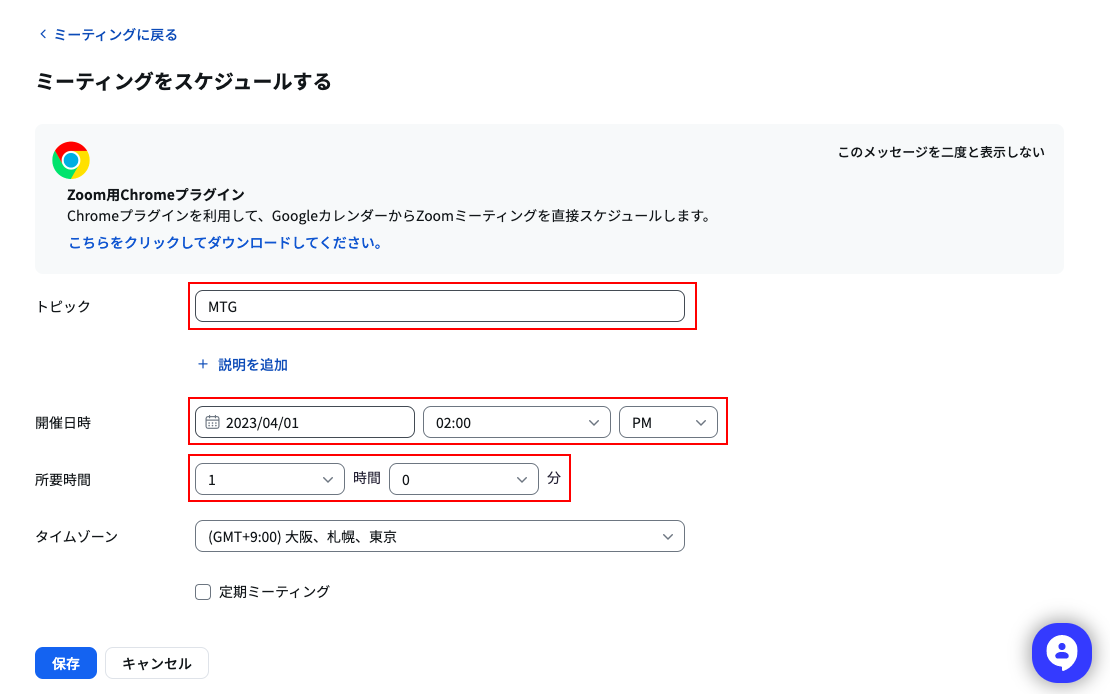
■ How to Schedule a Meeting
First, click “Schedule a Meeting” in the upper-right corner (red box in the image).

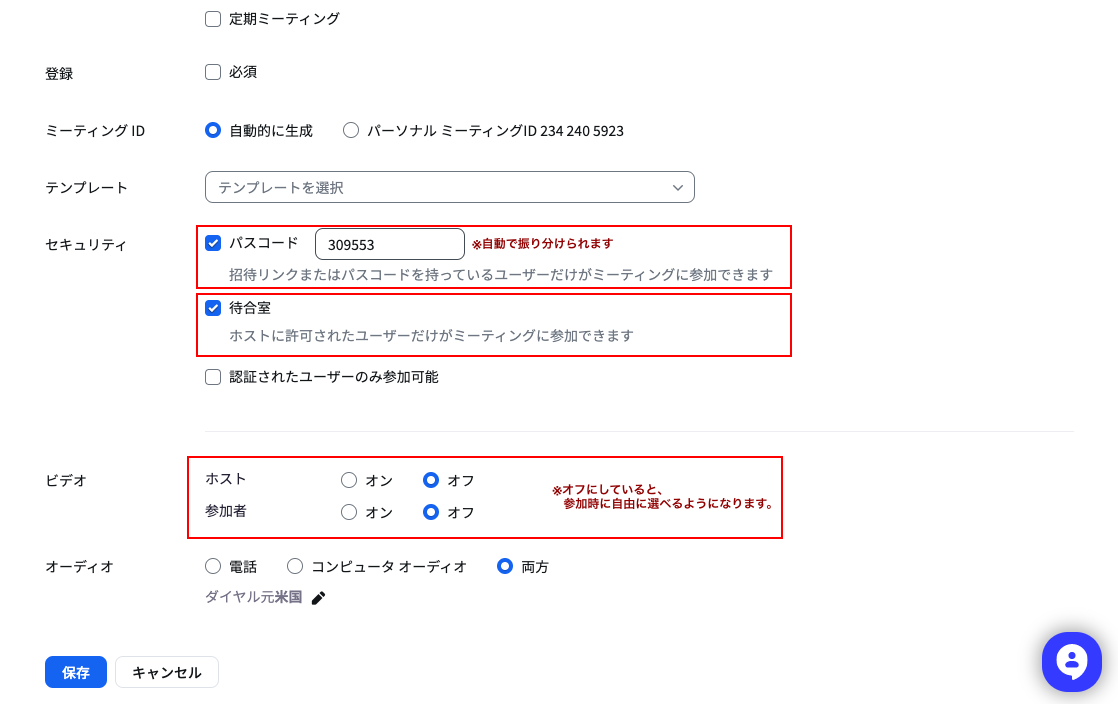
Next, the screen shown below will appear, so fill in the fields within the red boxes.
Click "Save" to complete the scheduling!
■ How to Share a Scheduled Meeting with Participants
Once the MTG you just created has been saved, the screen will look like this.
If you click “Start,” the event will begin immediately, but instead, click “Copy Invitation” next to it.
You'll then see the URL and password required to join the MTG displayed in the text, so
Let's share that with the participants as is!
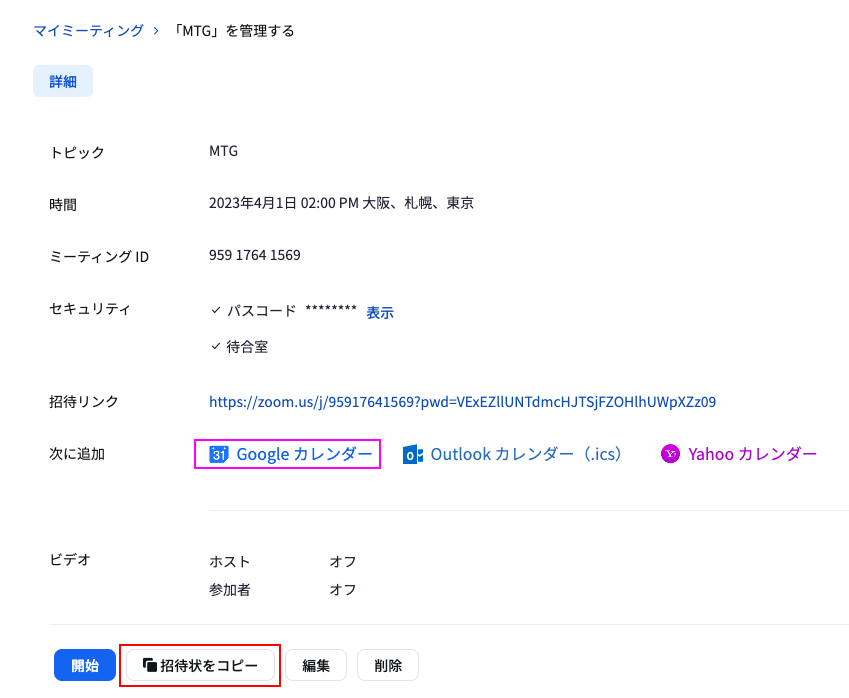
Also, regarding “Google Calendar,” which is highlighted in the pink box,
Click there to sync with "Google Calendar"!
Once you sync your calendars, you'll be able to see at a glance when meetings are scheduled, so be sure to give it a try!
[Scenario 2] When the other person is the host (organizer)
When I'm not hosting, I don't really have anything to do.
I believe the host has already shared the meeting link with you, so,
Just click the meeting link at the scheduled time to join the meeting!
It's really easy, isn't it? ^^
Basic Instructions for Joining a Zoom Meeting
When you join an MTG, icons like the ones below will appear at the bottom of the screen.
Among those, I'll explain the icons you use most often!

■ Mute
If you turn off the mute button, you won't be able to hear the voice.
To turn it on or off, simply click the icon—it's that easy.
■ Start Video
When you click the ↑ arrow on the video button, the following text appears.
・Blur the background
Just as the words say, the background becomes blurry.
This is recommended for people who work remotely from home or who attend meetings in crowded places.
・Select a virtual background
You can change the background to any image you like!
・Selecting a Video Filter
Just like in a photo app, you can apply filters.
あ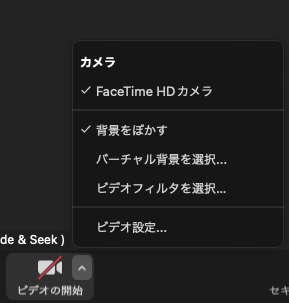
■ Participants
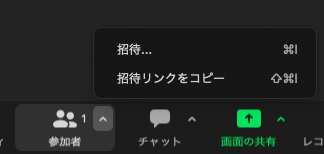
When you click the ↑ arrow on the participant button, the following message appears.
In meetings with a large number of participants, you can change participants' names here.
■ Chat
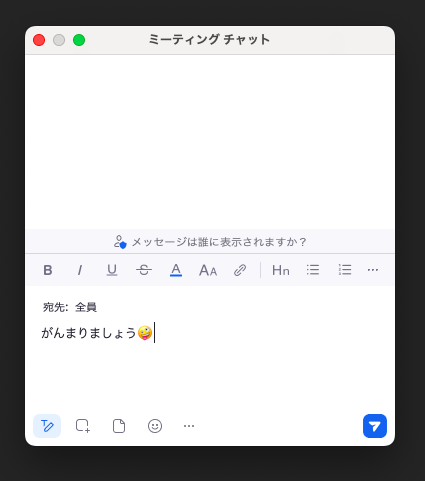
Chat is a feature that allows you to send messages to participants.
You can also send messages to specific participants, so be sure to give it a try!
■ Screen Sharing
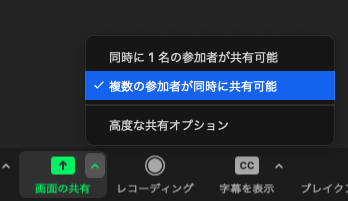
When you click the ↑ arrow on the screen-sharing button, the following message appears.
By making it possible for “multiple participants to share simultaneously,” as explained earlier,
Since you'll be able to share your screen even if you're not the host, this is something hosts should definitely check out.
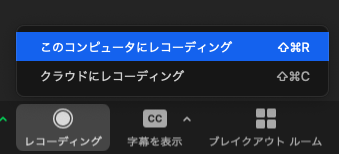
■ Recording
As the name suggests, this feature allows you to record meetings. It’s handy when some participants can’t attend the meeting!
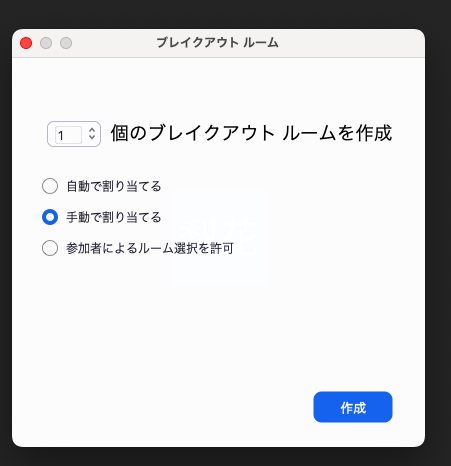
■ Breakout Room
This feature literally allows you to create breakout rooms. It’s important to select “Assign manually” here.
When you click "Assign Manually," you'll be able to freely assign participants to rooms.
You might not have many opportunities to use it, but this feature makes online MTG meetings so much easier!
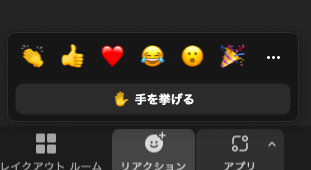
■ Reaction
When you click the reaction button, emojis will appear as shown below.
Even when you're muted, try tapping the reaction button to show your reaction.
Reaction emojis are temporary, so they disappear right away, but
Since the “Raise Hand” button won’t disappear unless you click it,
Give it a try if you have any questions!
...That's all there is to it!
Does the content of the event vary depending on the plan?
Finally, here’s an introduction to the most important plan.
When using Zoom as a "host,"You must have a Zoom account, so
You should keep this pricing plan in mind, too!
For more details on our services, please check out our official website ^^
*Service details are current as of January 2025.*

Free Plan
As long as the number of participants is 100 or fewer and the time limit is 40 minutes or less,You can host MTG sessions even with the free plan.
Pro Plan
The event is open to up to 100 participants, with a time limit of up to 30 hours!
Business Plan
The event can accommodate up to 300 participants, and there’s effectively no time limit!
Summary
We've introduced how Zoom works and its basic features.
I’m sure there were some features you weren’t familiar with or had never used before.
Now that “online” has become the norm, Zoom is used in a wide variety of situations.
Be sure to give it a try!