


In this article, we’ll explain how to easily set up GA4 from your Universal Analytics (UA) dashboard for those who are already using UA and want to start using GA4.
You can use both UA and GA4 at the same time
It’s been over a year since GA4 was launched, hasn’t it? When it first launched, there were still many unfinished features and very little information available, which made it difficult to use.
However, now that more than a year has passed, a wealth of information about GA4 has begun to emerge, and more companies are moving forward with its implementation. We encourage you to take this opportunity to implement it and get comfortable with how to use it.
This time, I’d like to talk about implementation. Implementing GA4 is easy, and even after you implement it, you can continue to use UA.
Also, even if you aren’t using GA4 right now, simply setting it up will allow you to start collecting data, so you’ll be able to put that data to use right away once GA4 becomes the industry standard.
If you're already using UA, you can easily set up GA4.
If you're already using UA, you can easily create a GA4 property from the admin console.
Here, we'll explain how to do that with illustrations.
<導入方法>
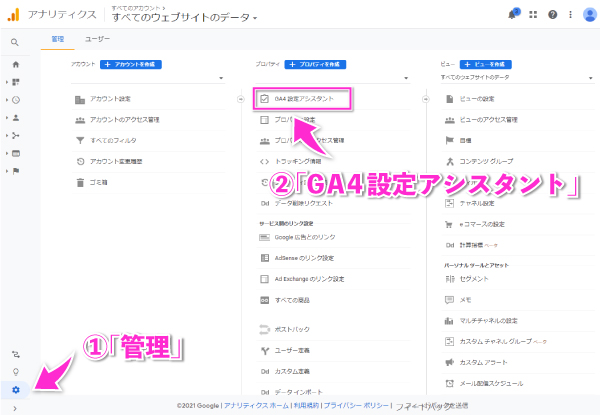
First, click “GA4 Setup Assistant” in the Properties section under “Manage” in the lower-left corner.
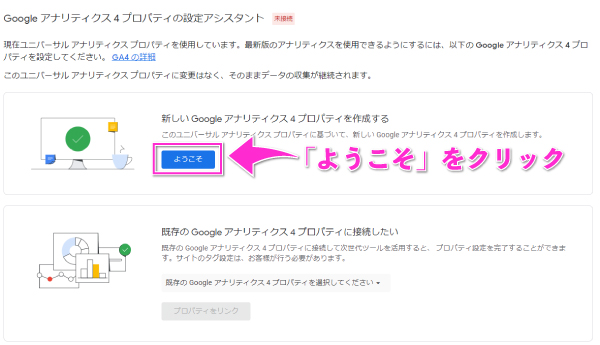
Next, click "Welcome"
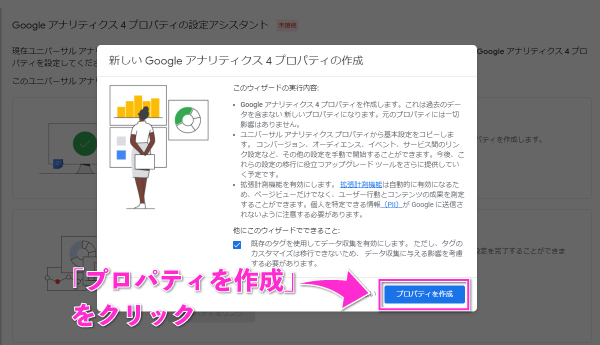
Leave the checkbox checked and click "Create Property."
*If you have customized the original UA tag, you may not be able to create a property using this method. In that case, please uncheck the box, create a GA4 property, and then link it to your current GA4 property.
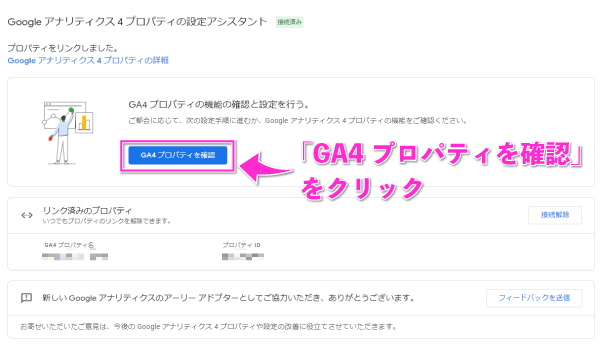
When this screen appears, it means your GA4 property has been created. Click “View GA4 Property,” and the GA4 property management screen will open in a new tab.
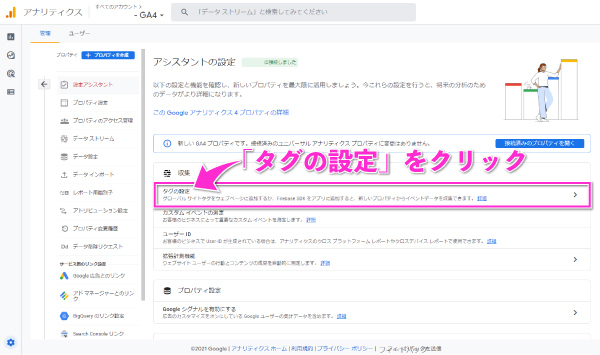
Next, we'll set up tags in GTM. Click "Tag Setup."
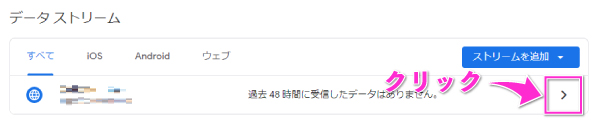
The Data Stream screen will appear, so click the “>” icon.
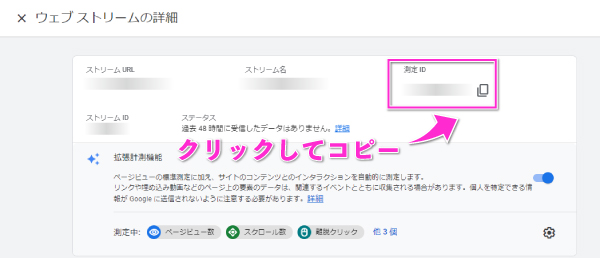
This will display the web stream details, so click on the “Measurement ID” field and copy it to your clipboard.
From this point on, we'll be configuring this in GTM, soPartway through this articlePlease refer to the following.
*Clicking the link will take you to the next section.